How to Update Xhorse VVDI Mini OBD Tool Firmware?
This is an initial guide on how to update Xhorse VVDI Mini OBD Tool WIFI firmware via a smart phone. Follow the 4 steps below to learn how to do.
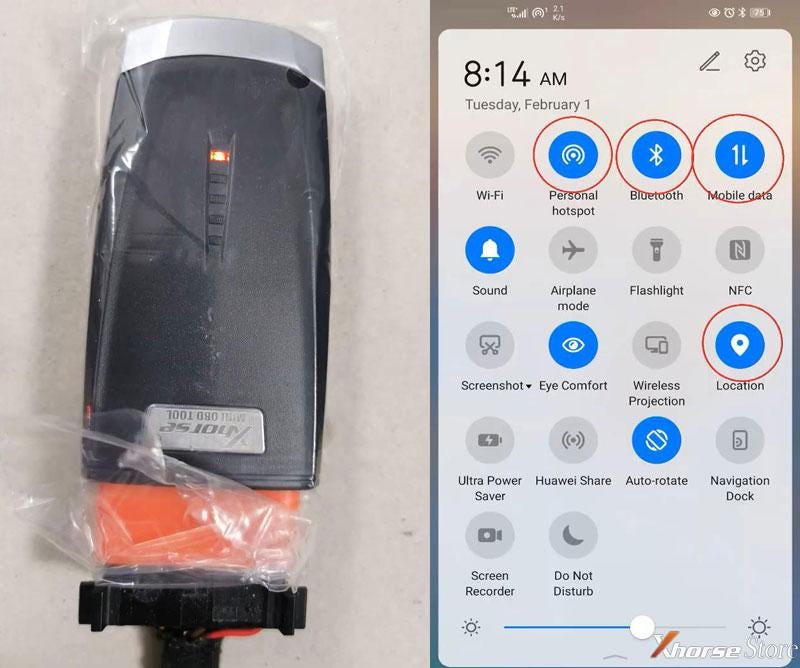
- Connect VVDI Mini OBD Tool to OBD 12V power, enable GPS location, 3G data & hotspot;
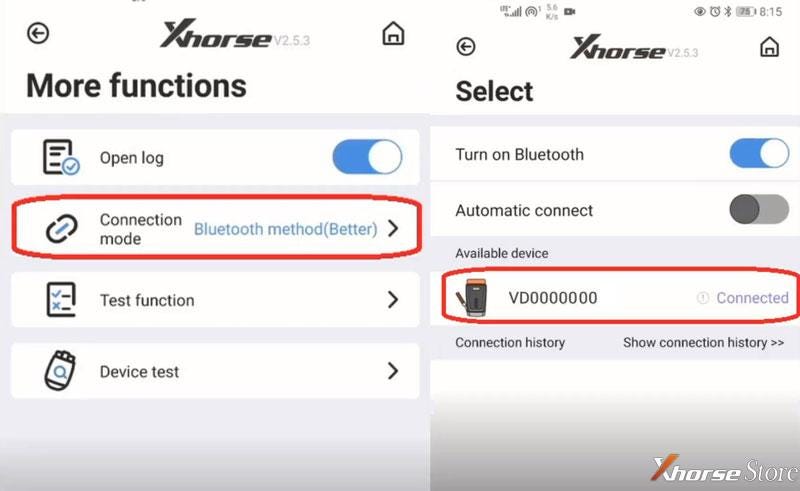
- Change settings to Bluetooth connection, connect Mini OBD via Bluetooth in Xhorse APP;
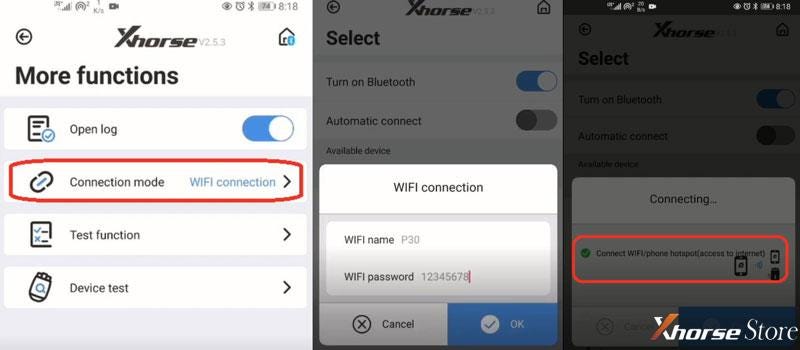
- Switch connection from Bluetooth to WiFi, confirm again the connection. Enter hotspot details(name & password), wait for connection;
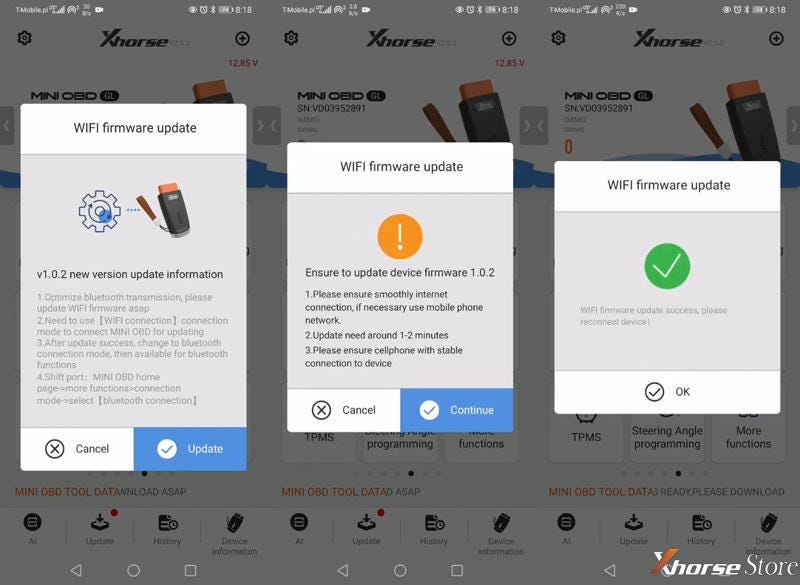
- Start updating.
WIFI firmware update
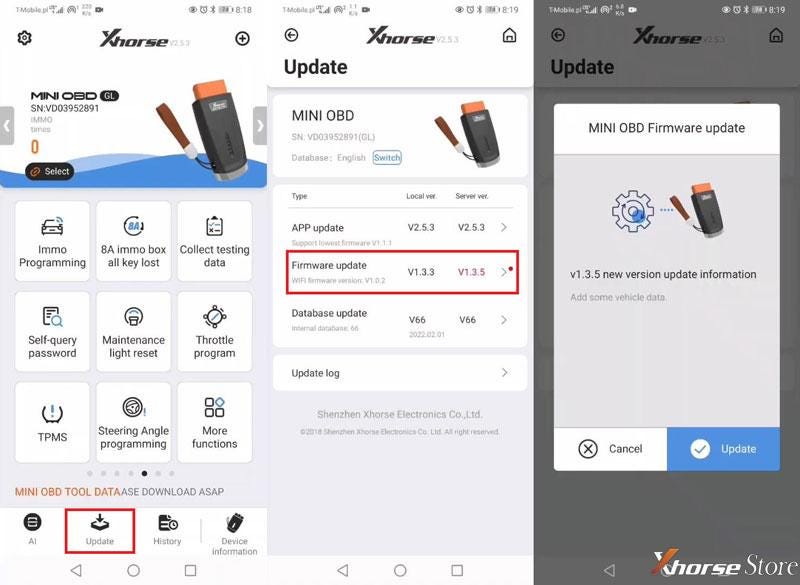
Update >> Continue >> OK
Go to check the MINI OBD firmware version.
It’ll show with a red dot if it needs to update, just click it.
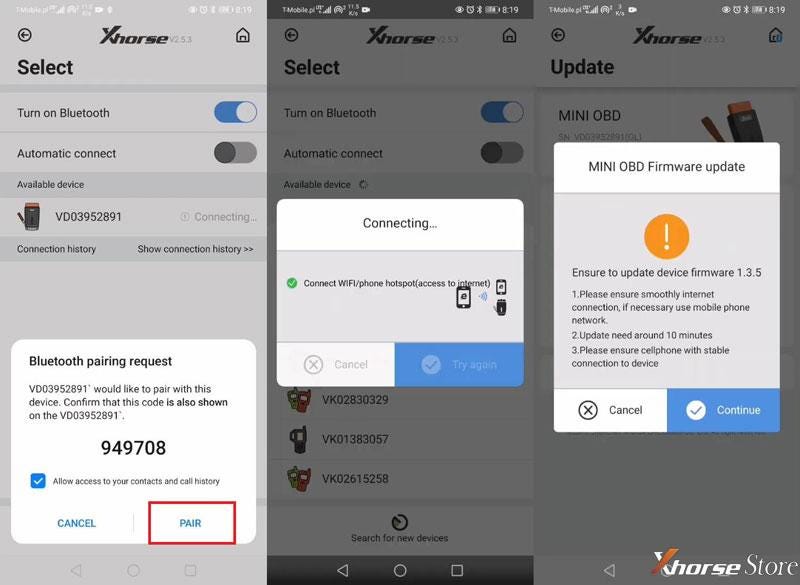
Update >> Firmware update version >> Update >> Bluetooth Pair >> Continue
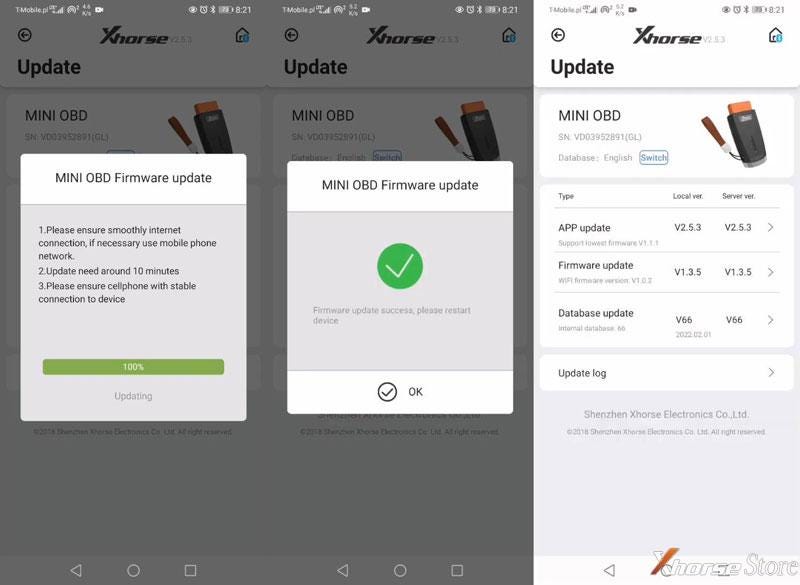
Wait processing until 100%...
Firmware update success.
The red dot will go once completed.


Comments
Post a Comment